Build & Deploy
Build your Unity project and deploy to Board hardware.
Building Your Project
Build an APK
- Open File > Build Settings (Unity 6+: File > Build Profiles)
- Ensure your scenes are added to the build list
- Click Build and choose a location for your APK
Tip: For development builds, enable Development Build in Build Settings to access debugging features including the debug overlay.
Board Developer Bridge (bdb)
Use bdb to deploy and manage your builds on Board hardware.
Getting
bdb: Board Developer Bridge is distributed separately from the Unity SDK. Request access if you don’t have it yet.
Connect Board
Connect Board to your computer via USB-C. The developer service runs automatically on Board, so bdb will auto-detect the connection.
Check Connection
Verify bdb can communicate with Board:
bdb status
This displays the connection status and device information.
Check Board OS Version
bdb version
Displays Board OS version. bdb requires Board OS 1.3.8 or later.
Installing Your App
Deploy your built APK to Board:
bdb install path/to/your-game.apk
bdb uploads the APK and installs it on Board. You’ll see upload progress and a success message when complete.
Example
$ bdb install ./Builds/MyGame.apk
Installing MyGame.apk (45000000 bytes)
Detected Board at /dev/cu.usbmodem14201 (Serial: BD12345)
Uploading: 100%
Installation successful
Launching Your App
Start your installed app:
bdb launch com.yourcompany.yourgame
The package name matches what you configured in Unity’s Player Settings > Other Settings > Package Name.
To then stop your running app:
bdb stop com.yourcompany.yourgame
Find Your Package Name
List apps you’ve installed via bdb:
bdb list
This shows package names for developer-installed apps.
Accessing Sideloaded Games on Board
After installing a game with bdb install, you can launch it from the device itself through the Settings menu.
Open Settings > Sideloaded from the Home screen to see all games installed via bdb. From there you can launch any sideloaded game directly.
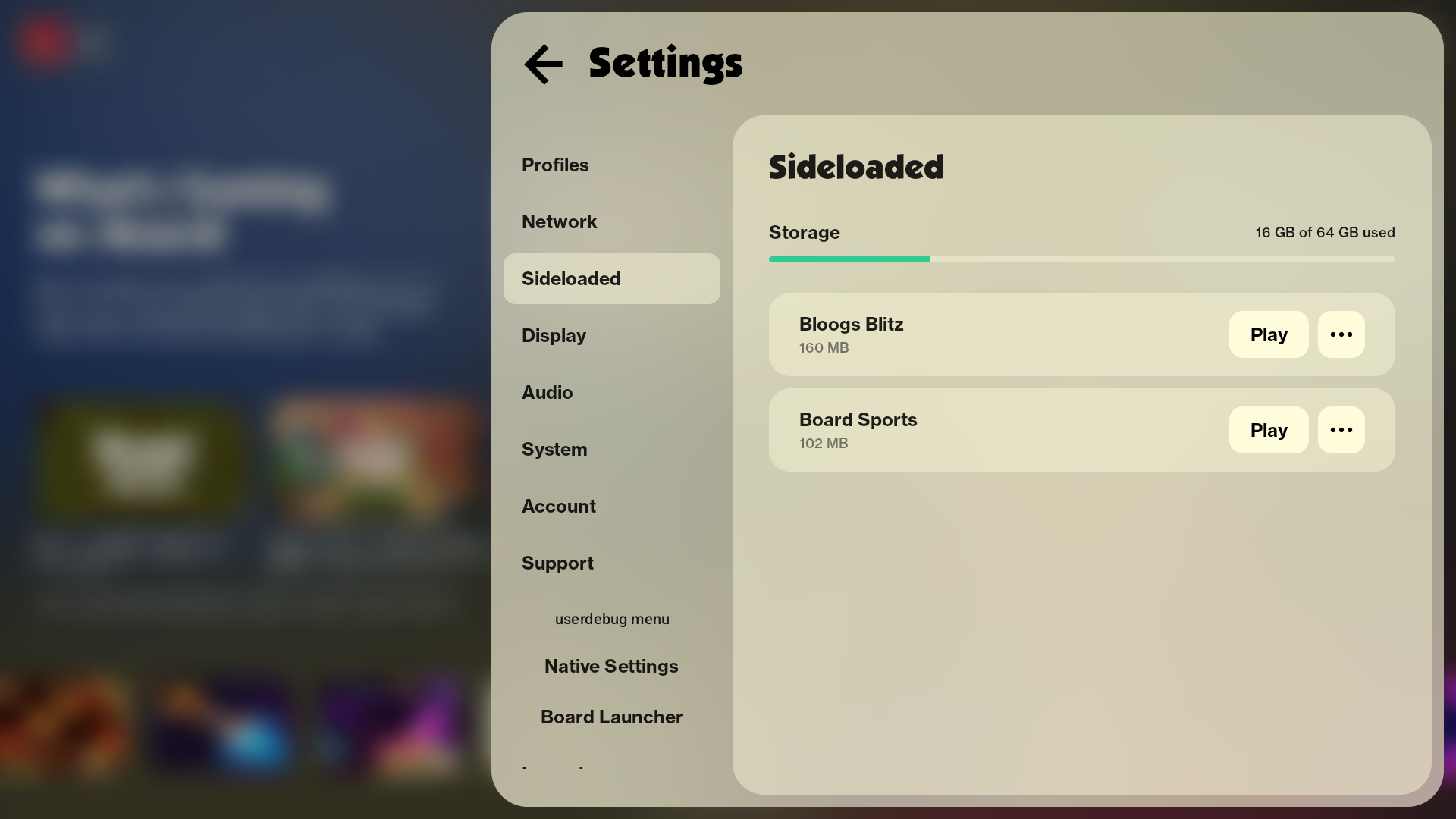
Note: The Sideloaded panel only appears when at least one game has been sideloaded, and is only visible when Settings is opened from the Home screen (not while a game is running).
Requires Board OS 1.6.2+. Check your version in Settings > System > Firmware.
Viewing Logs
Stream logs from your running app:
bdb logs com.yourcompany.yourgame
Press Control+C to stop streaming.
Use logs to debug issues on device, view BoardLogger output, and diagnose crashes.
Managing Apps
List Installed Apps
bdb list
Remove Developer Apps
To remove an individual app via bdb:
bdb remove com.yourcompany.yourgame
Remove all apps you’ve installed via bdb:
bdb cleanup
This removes developer-installed apps but preserves system apps.
Command Reference
| Command | Description |
|---|---|
bdb version |
Show Board OS version |
bdb status |
Check connection status |
bdb install <apk> |
Install an APK to Board |
bdb launch <package> |
Launch an installed app |
bdb stop <package> |
Stop a running app |
bdb logs <package> |
Stream logs from an app |
bdb list |
List developer-installed apps |
bdb remove <package> |
Remove an installed app |
bdb cleanup |
Remove all developer-installed apps |
bdb list-ports |
List available serial ports (debugging) |
bdb help |
Show help message |
Troubleshooting
Board Not Detected
- Verify USB cable is connected (data-capable, not charge-only)
- Try a different USB port
- Run
bdb list-portsto see available serial ports
Installation Fails
- Ensure the APK was built for ARM64 architecture
- Check that API Level 33 is set in Unity Player Settings
- Verify sufficient storage on Board (
bdb statusshows device info)
App Crashes on Launch
- Stream logs to see the crash:
bdb logs com.yourcompany.yourgame - Rebuild with Development Build enabled for more detailed errors
- Check that all required settings are configured (see Setup Reference)
Next Steps
- Sample Scene - Explore SDK features
- Simulator - Test without hardware
- Touch Input - Handle Piece and finger input