Pause Menu
Board ships a system pause menu that BoardOS renders on top of your game. The OS owns the menu button and every pixel of the menu UI; your game supplies the context the menu shows (its title, optional custom buttons, optional audio sliders) and reacts to whatever the player picks. This is consistent across all three SDKs: the configuration and result shapes are the same logical model, only the per-engine call style differs (Unity sets context on a static class and receives results as events, Godot pushes a Dictionary and listens on a signal, Web passes a typed object and subscribes a callback).
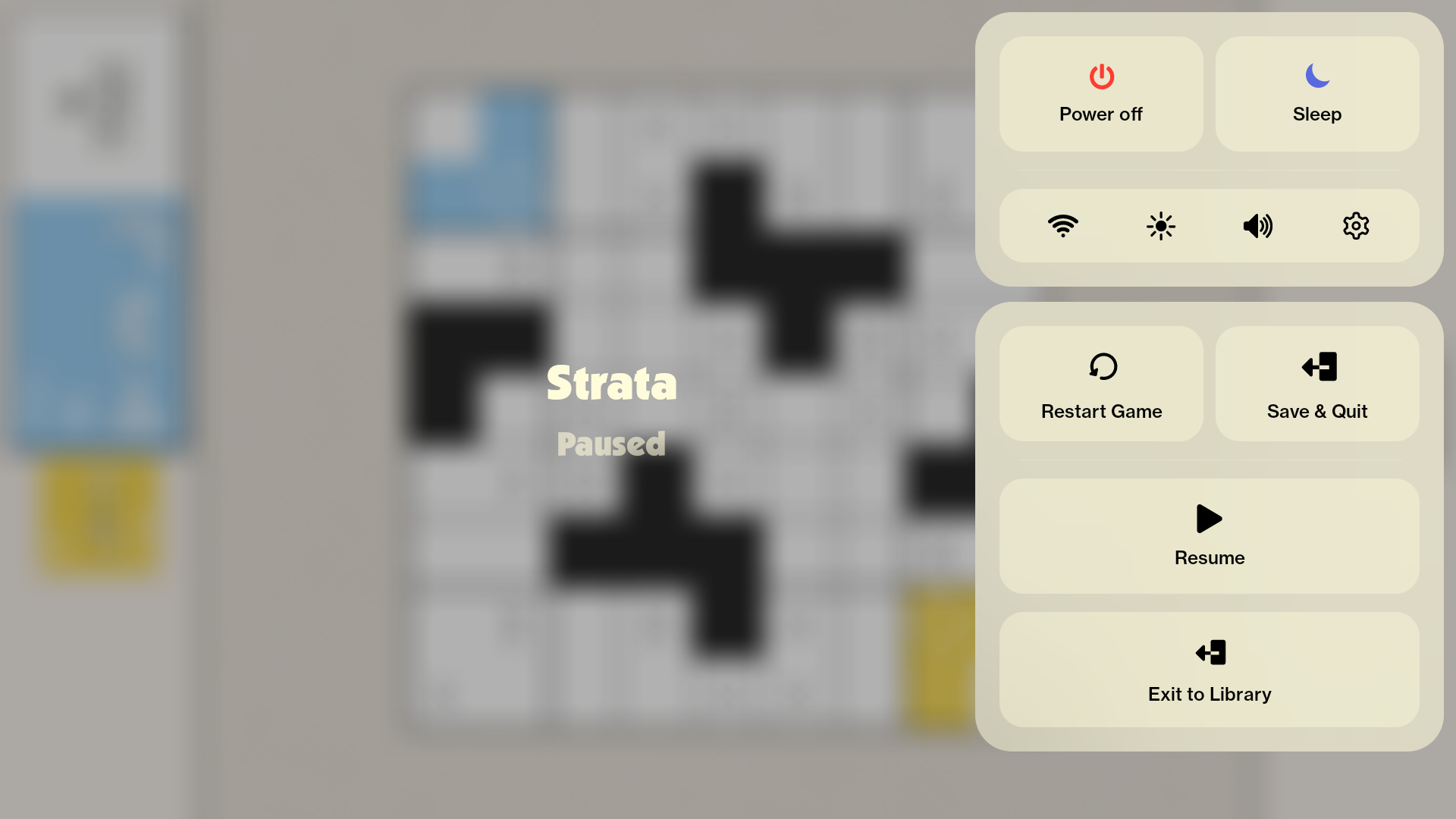
New to Board’s overlays? The pause menu is one of three OS-owned overlays, alongside the Player Management selector and the Profile Switcher. They all follow the same “the OS renders it, your game describes it” pattern.
How the pause menu works
The pause menu is a pass-through system. BoardOS renders the UI and captures the player’s taps; your game owns all the logic. The menu always has these built-in actions:
| Action | When shown | Your responsibility |
|---|---|---|
| Resume | Always | Unpause gameplay (restore your timescale, resume audio) |
| Exit to Library | Always | Do any cleanup, then quit the app |
| Exit & Save | Only when you opt in | Save the game, then quit the app |
You cannot remove or restyle the built-in actions. You can add your own custom buttons (Restart, How to Play, anything your game needs) and audio sliders alongside them.
The game is responsible for everything behind the menu:
- Register a context before the player can pause. If no context is set, the system menu button has nothing to open and the tap looks like a no-op.
- Pause gameplay while the overlay is open. BoardOS does not pause your game loop for you.
- Resume gameplay when the player taps Resume.
- Save the game when the player taps Exit & Save (Board never saves on your behalf).
- Quit the app when the player exits.
- Apply the returned audio values to your audio system.
You do not manage the menu button’s visibility. The OS shows the system menu button automatically on resume and hides it across the activity lifecycle. Your only job is to register a context so the button has something to open.
Per-SDK shape of the API
The model is identical; the surface differs per engine. When porting code across SDKs, mind these:
| Unity | Godot | Web | |
|---|---|---|---|
| Set context | SetPauseScreenContext(...) (named params) |
set_context(Dictionary) |
setContext(BoardPauseContext) |
| Partial update | UpdatePauseScreenContext(...) |
update_audio_tracks(Array) (audio only) |
updateContext(Partial<...>) |
| Clear | ClearPauseScreenContext() |
clear_context() |
clearContext() |
| Result delivery | C# events | pause_result_received signal |
onResult(cb) callback |
| Action type | BoardPauseAction enum |
ACTION_* string constants |
plain string |
| Icon type | BoardPauseButtonIcon enum |
ICON_* string constants |
plain string |
| Quit the app | BoardApplication.Exit() |
Board.application.quit() |
Board.application.quit() |
One difference worth calling out before any code: the Godot and Web SDKs require a device-gating check before touching the API (Web throws off-device, Godot no-ops), and Godot requires a one-time Board.initialize(app_id). Unity has no init call and no on-device gate around the pause API: BoardSupport.enabled exists for input but the pause calls are safe to make unconditionally.
Basic setup
The minimum viable pause flow: register a context with your game name and the save option, then handle the result. The OS shows Resume, Exit to Library, and Exit & Save, and your handler dispatches each.
using Board.Core;

void Start()
{
    // Configure the menu. All parameters are optional.
    BoardApplication.SetPauseScreenContext(
        applicationName: "My Game",
        showSaveOptionUponExit: true
    );

    // Results arrive as events.
    BoardApplication.pauseScreenActionReceived += OnPauseAction;
    BoardApplication.customPauseScreenButtonPressed += OnCustomButton;
}

void OnDestroy()
{
    BoardApplication.pauseScreenActionReceived -= OnPauseAction;
    BoardApplication.customPauseScreenButtonPressed -= OnCustomButton;
}

void OnPauseAction(BoardPauseAction action, BoardPauseAudioTrack[] audioTracks)
{
    switch (action)
    {
        case BoardPauseAction.Resume:
            ResumeGameplay();
            break;
        case BoardPauseAction.ExitGameUnsaved:
            BoardApplication.Exit();
            break;
        case BoardPauseAction.ExitGameSaved:
            // Save first (see "Save and quit" below), then exit.
            break;
    }
}

void OnCustomButton(string customButtonId, BoardPauseAudioTrack[] audioTracks)
{
    // Dispatch your own buttons here (see "Custom buttons").
}
import { Board, type BoardPauseResult } from "@board.fun/web-sdk";

if (Board.isOnDevice) {
  // Configure the menu. All fields are optional; omit ones you don't use.
  Board.pause.setContext({
    gameName: "My Game",
    offerSaveOption: true,
  });

  // Results arrive on a callback; onResult returns an unsubscribe fn.
  const unsubscribe = Board.pause.onResult((result: BoardPauseResult) => {
    switch (result.action) {
      case "resume":
        resumeGameplay();
        break;
      case "quit":
        Board.application.quit();
        break;
      case "save_and_quit":
        // Save first (see "Save and quit" below), then quit.
        break;
      case "custom_button":
        // Dispatch your own buttons here.
        break;
    }
  });
}
func _ready() -> void:
    if not Board.is_on_device:
        return
    Board.initialize("00000000-0000-0000-0000-000000000000")

    # Configure the menu. All keys are optional; omit ones you don't use.
    Board.pause.set_context({
        "game_name": "My Game",
        "offer_save_option": true,
    })

    # Results arrive on a signal.
    Board.pause.pause_result_received.connect(_on_pause_result)


func _on_pause_result(result: BoardPauseResult) -> void:
    match result.action:
        Board.pause.ACTION_RESUME:
            pass  # gameplay resumes
        Board.pause.ACTION_QUIT:
            Board.application.quit()
        Board.pause.ACTION_SAVE_AND_QUIT:
            # Save first (see "Save and quit" below), then quit.
            pass
        Board.pause.ACTION_CUSTOM_BUTTON:
            pass  # dispatch your own buttons here
Register the context early. Set it during your scene’s initialization, before the player can tap the system menu button. Without a context the button is live but the tap does nothing because the OS has nothing to display.
The context
A pause context has the same logical fields in every SDK. Only the casing and the call shape change.
| Field | Unity | Godot | Web | Meaning |
|---|---|---|---|---|
| App/game name | applicationName |
game_name |
gameName |
Title in the menu header |
| Save on exit | showSaveOptionUponExit |
offer_save_option |
offerSaveOption |
Show the Exit & Save action |
| Custom buttons | customButtons |
custom_buttons |
customButtons |
Your extra action buttons |
| Audio sliders | audioTracks |
audio_tracks |
audioTracks |
Volume sliders |
Godot and Web also have an app/game id field (game_id / gameId). It is normally omitted: Godot derives it from Board.initialize(), and on Web it is optional. Unity has no game-id field on the context.
Every field is optional. In Unity, unspecified named parameters fall back to defaults; in Web, keys you omit keep their previous value (for updateContext) or reset to defaults (for a fresh setContext). In Godot, set_context always replaces and sends only the keys you pass, so restate the full context. See Updating the menu for the exact merge vs replace semantics.
Custom buttons
Add game-specific actions alongside the built-in ones. Each custom button carries a stable id (returned to you when tapped), display text, and an optional icon.
using Board.Core;

var customButtons = new BoardPauseCustomButton[]
{
    new BoardPauseCustomButton("restart", "Restart Level", BoardPauseButtonIcon.CircularArrow),
    new BoardPauseCustomButton("help", "How to Play", BoardPauseButtonIcon.Square),
    new BoardPauseCustomButton("info", "About") // no icon (defaults to None)
};

BoardApplication.SetPauseScreenContext(
    applicationName: "My Game",
    showSaveOptionUponExit: true,
    customButtons: customButtons
);
Board.pause.setContext({
  gameName: "My Game",
  offerSaveOption: true,
  customButtons: [
    { id: "restart", title: "Restart Level", icon: "circulararrow" },
    { id: "help",    title: "How to Play",   icon: "square" },
    { id: "info",    title: "About",         icon: "" }, // no icon
  ],
});
Board.pause.set_context({
    "game_name": "My Game",
    "offer_save_option": true,
    "custom_buttons": [
        { "id": "restart", "title": "Restart Level", "icon": Board.pause.ICON_CIRCULAR_ARROW },
        { "id": "help",    "title": "How to Play",   "icon": Board.pause.ICON_SQUARE },
        { "id": "info",    "title": "About",         "icon": Board.pause.ICON_NONE },
    ],
})
Field names per SDK. Unity’s button text field is text; Godot and Web call it title. The id field is id everywhere.
Length limits. Across all SDKs, the id must be at most 64 characters and the label at most 128 characters. The native side rejects entries that exceed these.
Layout. Custom buttons fill rows of two. An even count gives all half-width buttons; an odd count promotes the trailing button to a full-width row (like the built-in Resume and Exit to Library buttons).
Available icons
Every SDK exposes the same five icon options. Unity names them with the BoardPauseButtonIcon enum; Godot exposes ICON_* string constants; Web takes the plain icon-name string directly (use the empty string for no icon).
| Icon | Suggested use | Unity (BoardPauseButtonIcon) |
Godot (Board.pause.*) |
Web (string) |
|---|---|---|---|---|
| No icon | None |
ICON_NONE |
"" |
|
 |
Restart, retry, replay | CircularArrow |
ICON_CIRCULAR_ARROW |
"circulararrow" |
 |
Exit, leave, quit | DoorWithArrow |
ICON_DOOR_WITH_ARROW |
"doorwitharrow" |
 |
Back, previous | LeftArrow |
ICON_LEFT_ARROW |
"leftarrow" |
 |
Stop, generic action | Square |
ICON_SQUARE |
"square" |
Pick icons that match the affordance the player expects: a restart should look like restart, a quit should not be a plain square.
Handling a custom button
When the player taps a custom button, you get its id back. Unity delivers it on a dedicated event; Godot and Web deliver it through the single result handler with the action set to the custom-button value and the id in a separate field.
void OnCustomButton(string customButtonId, BoardPauseAudioTrack[] audioTracks)
{
    switch (customButtonId)
    {
        case "restart":
            RestartLevel();
            break;
        case "help":
            ShowHelpScreen();
            break;
    }

    // Audio values come back here too; apply them (see "Audio sliders").
    ApplyAudioSettings(audioTracks);
}
Board.pause.onResult((result) => {
  if (result.action === "custom_button") {
    switch (result.customButtonId) {
      case "restart":
        restartLevel();
        break;
      case "help":
        showHelpScreen();
        break;
    }
  }
});
func _on_pause_result(result: BoardPauseResult) -> void:
    if result.action == Board.pause.ACTION_CUSTOM_BUTTON:
        match result.custom_button_id:
            "restart":
                _restart_level()
            "help":
                _show_help_screen()
A common custom button is Restart. Handle the id in your dispatch and route to the right scene (reload the current level, or change to the title screen). The mechanism is the same as any other custom button.
Audio sliders
The pause menu can host volume sliders, one per audio track. The player adjusts them; the new values come back to you with the result, every time the menu is dismissed, regardless of which action was picked. Each track has a stable id, a display name, and an integer value from 0 to 100.
using Board.Core;

var audioTracks = new BoardPauseAudioTrack[]
{
    new BoardPauseAudioTrack { id = "music", name = "Music", value = 80 },
    new BoardPauseAudioTrack { id = "sfx", name = "Sound Effects", value = 90 },
    new BoardPauseAudioTrack { id = "voice", name = "Voice", value = 100 }
};

BoardApplication.SetPauseScreenContext(
    applicationName: "My Game",
    audioTracks: audioTracks
);
Board.pause.setContext({
  gameName: "My Game",
  audioTracks: [
    { id: "music", name: "Music",         value: 80 },
    { id: "sfx",   name: "Sound Effects", value: 90 },
    { id: "voice", name: "Voice",         value: 100 },
  ],
});
Board.pause.set_context({
    "game_name": "My Game",
    "audio_tracks": [
        { "id": "music", "name": "Music",         "value": 80 },
        { "id": "sfx",   "name": "Sound effects", "value": 90 },
        { "id": "voice", "name": "Voice",         "value": 100 },
    ],
})
Fields. id (max 64 chars), name/name label (max 128 chars), and value (integer 0 to 100; out-of-range values are clamped by the native side).
Applying the returned values
Apply the audio values first in your result handler, before branching on the action, since they come back no matter what the player picked. The result carries each track’s id and new value.
void ApplyAudioSettings(BoardPauseAudioTrack[] audioTracks)
{
    foreach (var track in audioTracks)
    {
        // Map track.id to your mixer group and set the volume from track.value (0..100).
        SetMixerVolume(track.id, track.value);
    }
}
Board.pause.onResult((result) => {
  // Apply audio first — it returns regardless of the action.
  for (const track of result.audioTracks ?? []) {
    setMixerVolume(track.id, track.value); // value is 0..100
  }
  // ... then branch on result.action
});
func _on_pause_result(result: BoardPauseResult) -> void:
    # Apply audio first — it returns regardless of the action.
    for track in result.audio_tracks:
        _apply_volume(track.id, int(track.value))
    # ... then branch on result.action


func _apply_volume(track_id: String, value: int) -> void:
    var bus_idx := AudioServer.get_bus_index(track_id)
    if bus_idx < 0:
        return
    AudioServer.set_bus_volume_db(bus_idx, linear_to_db(value / 100.0))
The result’s audio entries carry an id and a value only (not the display name). Match each id back to the track you registered.
Actions
The result tells you which action the player chose. Unity uses the BoardPauseAction enum; Godot exposes string constants on Board.pause; Web uses plain string literals.
| Meaning | Unity (BoardPauseAction) |
Godot constant (wire value) | Web string |
|---|---|---|---|
| Resume gameplay | Resume |
ACTION_RESUME ("RESUME") |
"resume" |
| Exit without saving | ExitGameUnsaved |
ACTION_QUIT ("EXIT_GAME_UNSAVED") |
"quit" |
| Exit after saving | ExitGameSaved |
ACTION_SAVE_AND_QUIT ("EXIT_GAME_SAVED") |
"save_and_quit" |
| A custom button | CustomButton (via the dedicated Unity event) |
ACTION_CUSTOM_BUTTON ("CUSTOM_ACTION") |
"custom_button" |
A few engine-specific notes:
- Unity splits delivery: standard actions arrive on
pauseScreenActionReceivedand custom-button taps arrive on the separatecustomPauseScreenButtonPressedevent. You will not seeBoardPauseAction.CustomButtonin the standard handler in practice. - Godot action constants are not equal to their names:
ACTION_QUIT == "EXIT_GAME_UNSAVED",ACTION_SAVE_AND_QUIT == "EXIT_GAME_SAVED",ACTION_CUSTOM_BUTTON == "CUSTOM_ACTION". Always compare against theBoard.pause.ACTION_*constants, never the raw strings. - Web exposes no action constants:
result.actionis a plain string and the custom-button id is onresult.customButtonId.
The full dispatch
A complete handler covers all of the standard actions plus your custom buttons, applies audio first, and exits cleanly via the SDK’s quit call (never the engine’s own quit, so BoardOS returns the player to the launcher cleanly).
async void OnPauseAction(BoardPauseAction action, BoardPauseAudioTrack[] audioTracks)
{
    ApplyAudioSettings(audioTracks); // comes back regardless of action

    switch (action)
    {
        case BoardPauseAction.Resume:
            ResumeGameplay();
            break;
        case BoardPauseAction.ExitGameSaved:
            await SaveGame();        // you must save; Board does not
            BoardApplication.Exit();
            break;
        case BoardPauseAction.ExitGameUnsaved:
            BoardApplication.Exit();
            break;
    }
}

void OnCustomButton(string customButtonId, BoardPauseAudioTrack[] audioTracks)
{
    ApplyAudioSettings(audioTracks);
    switch (customButtonId)
    {
        case "restart": RestartLevel(); break;
        case "help":    ShowHelpScreen(); break;
    }
}
Board.pause.onResult(async (result) => {
  // Apply audio first — it returns regardless of the action.
  for (const track of result.audioTracks ?? []) {
    setMixerVolume(track.id, track.value);
  }

  switch (result.action) {
    case "resume":
      // gameplay continues
      break;
    case "quit":
      Board.application.quit();
      break;
    case "save_and_quit":
      await saveGame();            // you must save; Board does not
      Board.application.quit();
      break;
    case "custom_button":
      switch (result.customButtonId) {
        case "restart": restartLevel(); break;
        case "help":    showHelpScreen(); break;
      }
      break;
  }
});
func _on_pause_result(result: BoardPauseResult) -> void:
    # Apply audio first — it returns regardless of the action.
    for track in result.audio_tracks:
        _apply_volume(track.id, int(track.value))

    match result.action:
        Board.pause.ACTION_RESUME:
            pass  # gameplay continues
        Board.pause.ACTION_QUIT:
            Board.application.quit()
        Board.pause.ACTION_SAVE_AND_QUIT:
            await _save_current_game()   # you must save; Board does not
            Board.application.quit()
        Board.pause.ACTION_CUSTOM_BUTTON:
            match result.custom_button_id:
                "restart":
                    get_tree().reload_current_scene.call_deferred()
                _:
                    push_warning("[pause] unknown custom button: %s" % result.custom_button_id)
        _:
            push_warning("[pause] unknown action: %s" % result.action)
This is the recommended template. Adapt the custom-button cases to your game, but always cover the standard actions even if some are no-ops.
Save and quit
When the player picks Exit & Save, your game must complete the save before terminating. Board never saves for you, and the quit call is fire-and-forget: once you call it, the app is going away. Save first, then quit. (See Save Games for the full save API.)
async void OnPauseAction(BoardPauseAction action, BoardPauseAudioTrack[] audioTracks)
{
    if (action == BoardPauseAction.ExitGameSaved)
    {
        try
        {
            byte[] payload = SerializeGameState();
            var change = new BoardSaveGameMetadataChange
            {
                description = SaveDescription(),
                playedTime = PlayedSeconds(),
                gameVersion = Application.version
            };

            if (string.IsNullOrEmpty(currentSaveId))
                await BoardSaveGameManager.CreateSaveGame(payload, change);
            else
                await BoardSaveGameManager.UpdateSaveGame(currentSaveId, payload, change);
        }
        catch (System.Exception e)
        {
            Debug.LogError($"[pause] save-and-quit failed; exiting anyway: {e}");
        }

        BoardApplication.Exit();
    }
}
Board.pause.onResult(async (result) => {
  if (result.action === "save_and_quit") {
    try {
      const data: Uint8Array = serializeGameState();
      const playedMs = playedTime();

      if (!currentSaveId) {
        // First save — create returns the new metadata.
        const meta = await Board.save.create(
          saveDescription(), data, playedMs, GAME_VERSION);
        currentSaveId = meta.id;
      } else {
        // Subsequent save — update the existing entry.
        await Board.save.update(
          currentSaveId, saveDescription(), data, playedMs, GAME_VERSION);
      }
    } catch (e) {
      console.error("[pause] save-and-quit failed; quitting anyway", e);
    }
    Board.application.quit();
  }
});
func _on_pause_result(result: BoardPauseResult) -> void:
    if result.action == Board.pause.ACTION_SAVE_AND_QUIT:
        await _save_current_game()
        Board.application.quit()


func _save_current_game() -> void:
    var data := _serialize_game_state()
    var played_ms := _played_time_ms()

    if _current_save_id == "":
        # First save — create a new entry.
        var meta: BoardSaveMetadata = await Board.save.await_create(
            _save_description(), data, played_ms, GAME_VERSION)
        if meta == null:
            push_error("[pause] save-and-quit: create failed; quitting anyway")
            return
        _current_save_id = meta.id
    else:
        # Subsequent save — update the existing entry.
        await Board.save.await_update(
            _current_save_id, _save_description(), data, played_ms, GAME_VERSION)
Reasonable practice: if the save fails, log it and quit anyway. Do not trap the player in your app because the save backing failed.
Updating the menu
Your pause context changes as game state changes: a boss fight might disable saving, a combat mode might add a Surrender button. Unity and Web each offer a partial-update method plus a full replace; Godot only has a full-replace set_context (and an audio-only update_audio_tracks).
The merge semantics differ:
- Unity has two explicit methods.
SetPauseScreenContext(...)is a full replacement: any named parameter you omit resets to its default.UpdatePauseScreenContext(...)is a partial merge: omitted parameters keep their current value. - Web mirrors Unity:
setContext(...)replaces,updateContext(partial)merges a partial on top of the current context. - Godot has no general partial-merge. Every
set_context(...)call REPLACES the context with exactly the keys you pass, so you must restate the FULL context (includinggame_name) on every call — omitting required keys silently disables the pause button. There is no separate replace method;clear_context()removes the context entirely. The only partial path isupdate_audio_tracks(...), which merges just the audio array into the lastset_context.
Change a structural field
For example, toggling the save option off during a cinematic.
// Partial merge: only the save toggle changes, everything else is preserved.
BoardApplication.UpdatePauseScreenContext(showSaveOptionUponExit: false);

// ... after the cinematic:
BoardApplication.UpdatePauseScreenContext(showSaveOptionUponExit: true);
// updateContext merges a partial: only the save toggle changes.
Board.pause.updateContext({ offerSaveOption: false });

// ... after the cinematic:
Board.pause.updateContext({ offerSaveOption: true });
# set_context REPLACES the whole context, so restate every field.
Board.pause.set_context({ "game_name": "My Game", "offer_save_option": false })

# ... after the cinematic:
Board.pause.set_context({ "game_name": "My Game", "offer_save_option": true })
Swap custom buttons for a game state
For example, showing a Surrender button only during combat.
var combatButtons = new BoardPauseCustomButton[]
{
    new BoardPauseCustomButton("surrender", "Surrender", BoardPauseButtonIcon.DoorWithArrow)
};
BoardApplication.UpdatePauseScreenContext(customButtons: combatButtons);

// Remove them again by passing an empty array.
BoardApplication.UpdatePauseScreenContext(customButtons: new BoardPauseCustomButton[0]);
Board.pause.updateContext({
  customButtons: [
    { id: "surrender", title: "Surrender", icon: "doorwitharrow" },
  ],
});

// Remove them again by passing an empty array.
Board.pause.updateContext({ customButtons: [] });
Board.pause.set_context({
    "game_name": "My Game",
    "custom_buttons": [
        { "id": "surrender", "title": "Surrender", "icon": Board.pause.ICON_DOOR_WITH_ARROW },
    ],
})

# Remove them again by restating the context with an empty array.
Board.pause.set_context({ "game_name": "My Game", "custom_buttons": [] })
Live audio updates
If you want to react to slider movement (for example, to preview a sample at the new volume) without re-rendering the rest of the menu, update only the audio tracks. Unity and Web do this with a partial update that touches just the audio field; Godot has a dedicated update_audio_tracks(...) that merges only the audio array into the existing context.
// Partial update touching only the audio tracks.
BoardApplication.UpdatePauseScreenContext(audioTracks: currentAudioTracks);
// Partial update touching only the audio tracks.
Board.pause.updateContext({ audioTracks: currentAudioTracks });
# Merges only the audio array into the existing context — does not re-render
# the game name, custom buttons, etc.
Board.pause.update_audio_tracks(_audio_tracks)
Use the audio-only / partial update for per-keystroke slider changes. Reserve a full
SetPauseScreenContext/setContextfor full reconfigurations: those force the OS to re-render the whole pause UI.
Clearing the context
When you leave gameplay (for example, returning to a main menu where the player cannot be “in” a game to pause), clear the context. After clearing, tapping the system menu button does nothing until you register a context again.
BoardApplication.ClearPauseScreenContext();
Board.pause.clearContext();
Board.pause.clear_context()
Pausing gameplay while the menu is open
The pause result fires when the player dismisses the overlay, not when they open it. None of the SDKs fire an “overlay opened” signal. To pause your game loop while the menu is up, use your engine’s own application-lifecycle hooks, since BoardOS fires the standard activity-lifecycle events when the overlay covers your app.
// Unity routes the activity-pause through OnApplicationPause.
void OnApplicationPause(bool paused)
{
    if (paused)
        PauseGameplay();   // overlay opened (or app backgrounded)
    else
        ResumeGameplay();  // overlay dismissed (or app foregrounded)
}
// In a WebView, the page's visibility flips when the overlay covers the app.
document.addEventListener("visibilitychange", () => {
  if (document.hidden) {
    pauseGameplay();   // overlay opened (or app backgrounded)
  } else {
    resumeGameplay();  // overlay dismissed (or app foregrounded)
  }
});
func _notification(what: int) -> void:
    if what == NOTIFICATION_APPLICATION_PAUSED:
        _pause_game()    # overlay opened (or app backgrounded)
    elif what == NOTIFICATION_APPLICATION_RESUMED:
        _resume_game()   # overlay dismissed (or app foregrounded)
Use these lifecycle hooks, not the pause result, to stop and restart your game loop. The pause result is for acting on the player’s choice (resume, exit, save and exit, or a custom button).
Best practices
- Register the context early. Set it during your scene’s initialization, before the player can tap the system menu button.
- Always cover the standard actions. Even if Resume or Exit is a no-op for you, do not fall through silently.
- Apply audio first in your result handler. The audio values come back regardless of which action was picked.
- Use the partial update for live slider feedback. Do not restate the full context per keystroke; that re-renders the entire pause UI.
- Quit through the SDK, not the engine. Use the SDK’s quit call so BoardOS returns the player to the launcher cleanly.
- Pause your game loop with lifecycle hooks, not the pause result, since the result only fires on dismissal.
- Use the named action enum or constants. Do not hardcode raw wire strings (especially in Godot, where the constants differ from their wire values).
See Also
- Save Games - saving when the player picks Exit & Save
- Player Management - the player-selector OS overlay
- Profile Switcher - the third OS overlay
- App Lifecycle - quitting cleanly and lifecycle events
- Architecture - how OS overlays sit above your game
- Per-SDK API references: Unity, Godot, Web