Profile Switcher
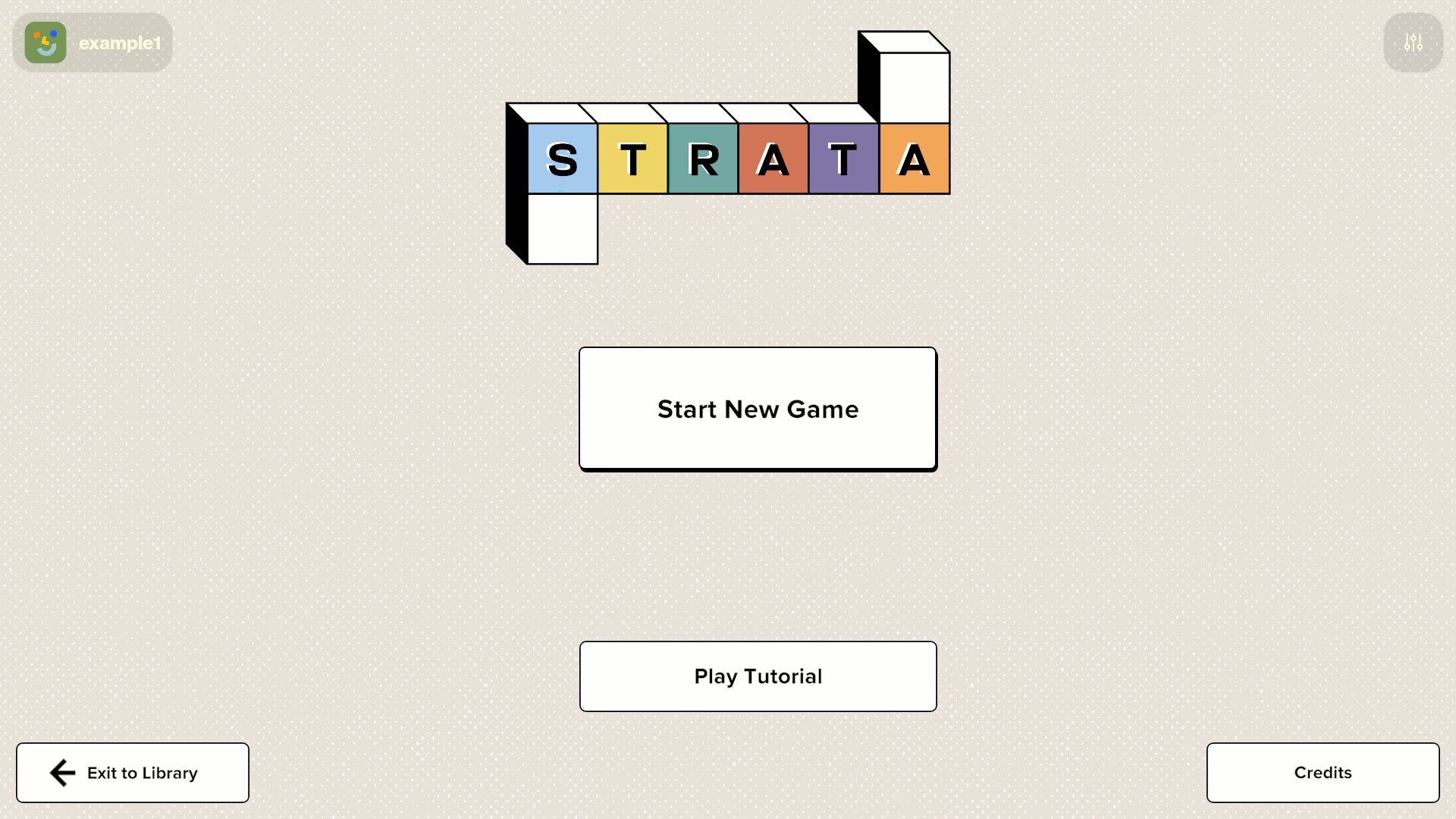
The profile switcher is a native overlay button rendered by BoardOS in the top-left corner of the display. Tapping it opens a system-level UI that lets the user swap the active Board profile without quitting your game. Your game controls whether the button is visible, which is useful for hiding it during active gameplay and showing it at idle screens. This is an OS overlay, so the SDK does not draw it: your game just toggles its visibility.
New to Board sessions and profiles? Read Core Concepts for what a profile is, and Player Management for working with the session roster.
What a profile is
A Board profile is the persistent identity of a user on the hardware: their name, avatar, save games, and accumulated state. Multiple profiles can coexist on the same Board, and the profile switcher is how the user moves between them. The active profile is owned by the OS, not your game. When the user picks a different profile through the switcher overlay, the OS updates the active profile and the session roster, and your game reacts to that change.
There is no “is currently shown” getter in any SDK. If you need to know whether the button is up, track that state in your own game.
Showing and hiding the switcher
Two calls control the overlay: one to show the button, one to hide it. Both are fire-and-forget and take effect on the next OS render frame, so you can call them from any context (a UI callback, a scene change, even an input handler).
The home of these calls differs by SDK. In Unity the switcher lives on BoardApplication. In Godot it lives on Board.session. In Web the canonical home is Board.application (the Board.session equivalents exist but are deprecated).
using Board.Core;

// Show the overlay button (top-left).
BoardApplication.ShowProfileSwitcher();

// Hide it.
BoardApplication.HideProfileSwitcher();
import { Board } from "@board.fun/web-sdk";

// Show the overlay button (top-left).
Board.application.showProfileSwitcher();

// Hide it.
Board.application.hideProfileSwitcher();
# Show the overlay button (top-left).
Board.session.show_profile_switcher()

# Hide it.
Board.session.hide_profile_switcher()
Gating on device
These calls only do anything on a real Board. Guard them so editor and desktop runs stay clean. Unity exposes BoardSupport.enabled, Godot exposes Board.is_on_device, and Web exposes Board.isOnDevice. The Web gate matters more than the others: off-device, the Web switcher calls throw (they route through the host bridge), so the guard is not optional. Godot additionally requires a one-time Board.initialize(appId) before any session call.
A typical idle-screen entry point that surfaces the switcher:
using Board.Core;

void OnMainMenuEntered()
{
    if (!BoardSupport.enabled)
        return;

    BoardApplication.ShowProfileSwitcher();
}

void OnGameplayStarted()
{
    if (!BoardSupport.enabled)
        return;

    BoardApplication.HideProfileSwitcher();
}
import { Board } from "@board.fun/web-sdk";

function onMainMenuEntered() {
  if (!Board.isOnDevice) return;
  Board.application.showProfileSwitcher();
}

function onGameplayStarted() {
  if (!Board.isOnDevice) return;
  Board.application.hideProfileSwitcher();
}
func _ready() -> void:
    if not Board.is_on_device:
        return
    Board.initialize("00000000-0000-0000-0000-000000000000")


func on_main_menu_entered() -> void:
    if Board.is_on_device:
        Board.session.show_profile_switcher()


func on_gameplay_started() -> void:
    if Board.is_on_device:
        Board.session.hide_profile_switcher()
Switcher button and selector UI
The button displays the current profile’s avatar in the top-left corner:
When the user taps it, Board displays the system profile selector. The user can select a different profile or open Board’s profile settings:
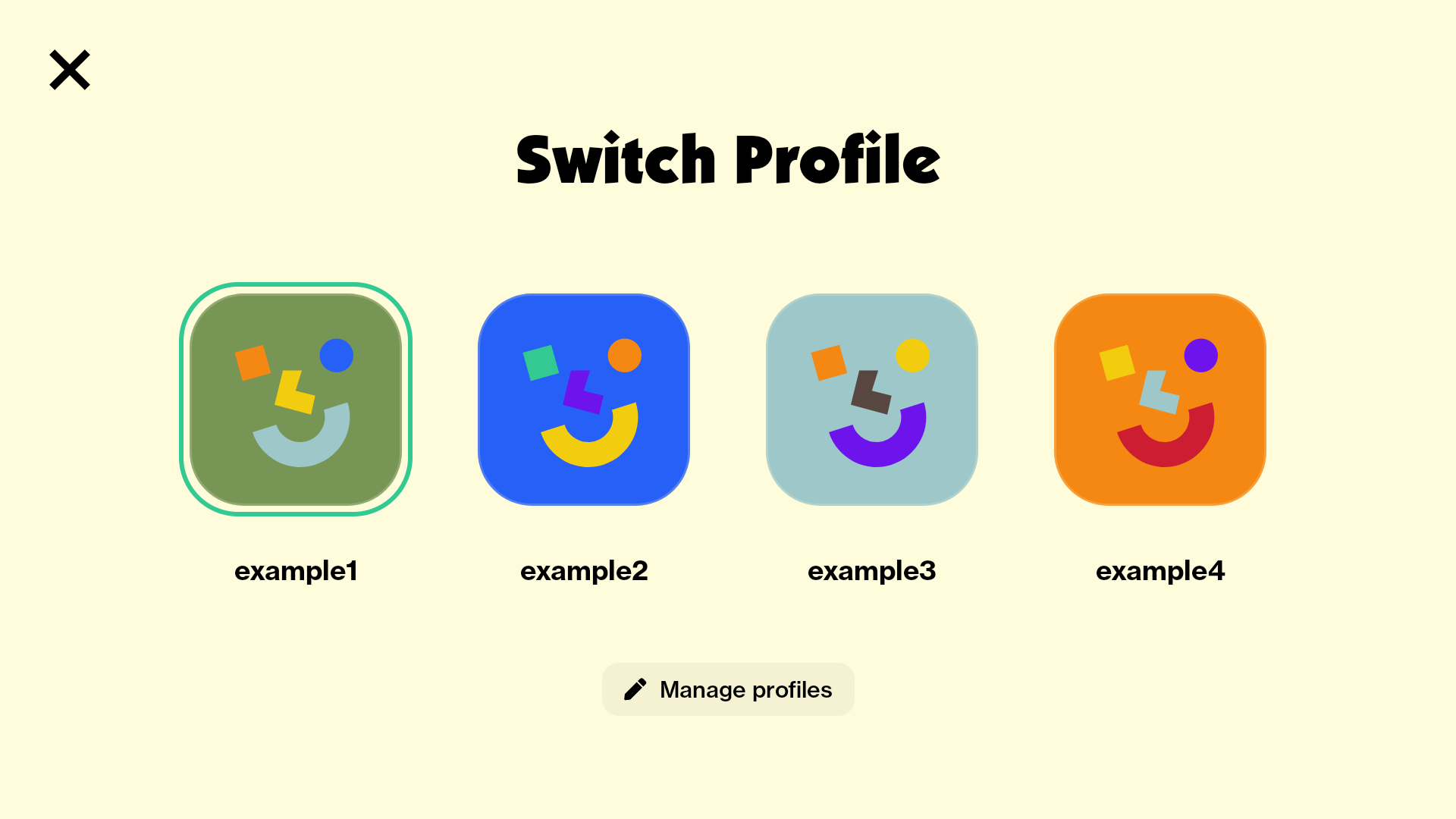
After a profile is selected, the active profile and the session roster update, and your game can react (see below).
When to show and hide
Show the switcher when the player is at a natural stopping point and might want to change identity:
- Main menu or title screen. The first place a player lands is where they are most likely to want to switch identity.
- Lobby or pre-game setup. Before a match starts, players may want to swap profiles to play under a different identity.
- Between rounds. A multi-round game can offer the switcher between rounds so a different player can take over.
- Pause or settings screens. If you do not show it inside the game proper, expose it here as a fallback.
- Results or score screens. Enable switching after completing a level or match.
Hide the switcher when an accidental tap would disrupt the experience:
- During active gameplay. A misplaced tap that opens the OS profile UI mid-match is jarring.
- Cutscenes and cinematic moments. Anything meant to be uninterrupted.
- Modal flows. While a save dialog or end-of-game screen is up, the switcher button competes for attention.
- Loading screens. Switching during a load can leave the game in an inconsistent state.
Reacting to a profile switch
When the user switches profiles through the overlay, the active profile changes and the session roster may mutate. Any player-scoped state your game holds (save game references, per-player preferences, cached avatars) is now stale and must be refreshed.
How you find out about the change differs fundamentally between the SDKs, so each tab shows its idiomatic setup rather than a line-for-line translation:
- Unity raises events. Subscribe to
BoardSession.playersChanged(and optionallyBoardSession.activeProfileChanged) and re-readBoardSession.players/BoardSession.activeProfile. - Godot emits a signal. Connect to
Board.session.players_changedand re-queryget_players()/get_active_profile(). - Web has no players-changed event. The Web SDK does not push profile changes. Instead, re-read
Board.session.getPlayers()andgetActiveProfile()after a roster-changing flow resolves (for example, afterpresentAddPlayer()returns), or when the game regains focus.
In every case the notification carries no payload, so you re-query the session to read the new state.
using UnityEngine;
using Board.Core;
using Board.Session;

public class ProfileManager : MonoBehaviour
{
    void Start()
    {
        BoardSession.playersChanged += OnPlayersChanged;
    }

    void OnDestroy()
    {
        BoardSession.playersChanged -= OnPlayersChanged;
    }

    void OnPlayersChanged()
    {
        BoardPlayer active = BoardSession.activeProfile;
        if (active != null)
        {
            Debug.Log($"Active profile: {active.name}");
            ReloadForActiveProfile(active.playerId);
        }
    }

    void ReloadForActiveProfile(string playerId)
    {
        // Reload save games, preferences, and player-specific state.
    }
}
import { Board } from "@board.fun/web-sdk";

// No players-changed event exists; re-read after a roster-changing flow,
// or when the app regains focus.
function refreshActiveProfile() {
  if (!Board.isOnDevice) return;

  const active = Board.session.getActiveProfile();
  if (active) {
    console.log("Active profile:", active.name);
    reloadForActiveProfile(active.playerId);
  }
}

function reloadForActiveProfile(playerId: string) {
  // Reload save games, preferences, and player-specific state.
}
func _ready() -> void:
    if not Board.is_on_device:
        return
    Board.session.players_changed.connect(_on_players_changed)


func _on_players_changed() -> void:
    var active: BoardPlayer = Board.session.get_active_profile()
    var active_name: String = active.display_name if active != null else "?"
    print("[session] active profile: %s" % active_name)
    if active != null:
        _reload_for_active_profile(active.player_id)


func _reload_for_active_profile(player_id: String) -> void:
    # Reload save games, preferences, and player-specific state.
    pass
The profile switcher and the system menu button
The profile switcher (top-left) and the system menu button that opens the pause overlay (top-right) are independent OS overlays. The profile switcher is game-controlled: you call show and hide. The system menu button is entirely OS-owned, shown and hidden by the OS across the activity lifecycle. Your game never toggles the menu button; it only needs to register a pause context so the button has something to open (see Pause Menu).
So a state transition into an idle screen only has to manage the profile switcher:
using Board.Core;

void EnterIdleState()
{
    if (!BoardSupport.enabled)
        return;

    BoardApplication.ShowProfileSwitcher();
    // The system menu button is managed by the OS, no game call needed.
}

void EnterPlayingState()
{
    if (!BoardSupport.enabled)
        return;

    BoardApplication.HideProfileSwitcher();
}
import { Board } from "@board.fun/web-sdk";

function enterIdleState() {
  if (!Board.isOnDevice) return;
  Board.application.showProfileSwitcher();
  // The system menu button is managed by the OS, no game call needed.
}

function enterPlayingState() {
  if (!Board.isOnDevice) return;
  Board.application.hideProfileSwitcher();
}
func enter_idle_state() -> void:
    if Board.is_on_device:
        Board.session.show_profile_switcher()
        # The system menu button is managed by the OS, no game call needed.


func enter_playing_state() -> void:
    if Board.is_on_device:
        Board.session.hide_profile_switcher()
The profile switcher is never auto-shown: you decide whether to display it.
Best practices
- Hide during active gameplay. Accidental profile changes mid-match are user-hostile. Show the switcher only at safe moments.
- Reload player-scoped data on a switch. Save games, preferences, and avatars are all profile-specific, so refresh them when the active profile changes.
- React to the change, do not poll. On Unity and Godot, subscribe to the profile-change notification. On Web, re-read the session after a roster-changing flow resolves or on focus.
- Surface the availability. Players need to know whether the switcher is available; if your UI does not make that visible, they cannot use it.
See Also
- Core Concepts — what a profile and a session are
- Player Management — reading and changing the session roster
- Pause Menu — the other OS overlay your game interacts with
- Application Lifecycle — quitting to the launcher and other application-level calls
- Per-SDK API references: Unity, Godot, Web
</content> </invoke>